How to Get a Digital Copy of Your National ID: Step-by-Step Guide 2026
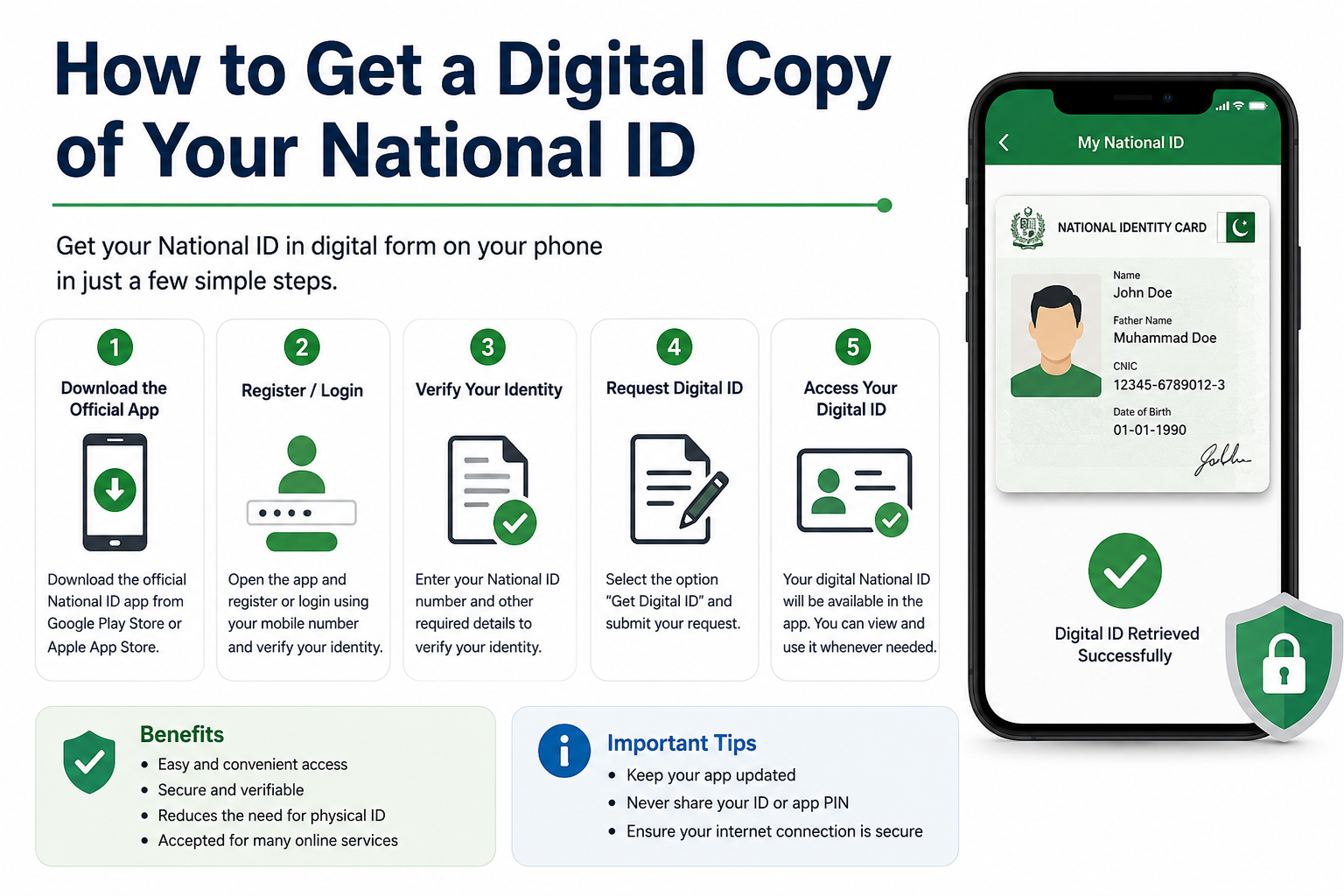
Getting a digital copy of your National ID has become easier through online government services and verified portals. Users can access official platforms, verify their identity, and securely download their digital National ID for use in banking, government verification, and online transactions. It is very important to always use trusted websites to avoid scams or fake services.
For step-by-step guidance and related services, you can visit the official portal here: https://psanlineappointment.org/. This ensures users get updated instructions and secure access to information.
Quick Answer
To get a digital copy of your National ID, download the eGovPH app or visit national-id.gov.ph, then verify your identity with your registered mobile number and a live selfie. Once verified, your Digital National ID appears instantly and can be saved or screenshotted for use in banks, government offices, and other transactions it carries the same legal validity as your physical PhilSys card, with no extra fees and no expiration date.
If you’ve registered for the Philippine National ID but you’re still waiting weeks (sometimes months) for your physical card to arrive by mail, you don’t actually have to wait. The Philippine Statistics Authority (PSA) already lets every registered Filipino pull up an official, verifiable digital version of their ID and we walk people through this process at PSAHelpline.ph almost every day.
This guide covers exactly how the download works, where you can legally use it, how to fix the most common errors, and what the law actually says about printing or sharing it.
What Is the Digital National ID?
The Digital National ID is the electronic version of your PhilSys ID sometimes called the National ID Digital or simply your “digital PhilID.” It’s issued and managed entirely by the PSA, and it pulls directly from the same PhilSys database that produces your physical card.
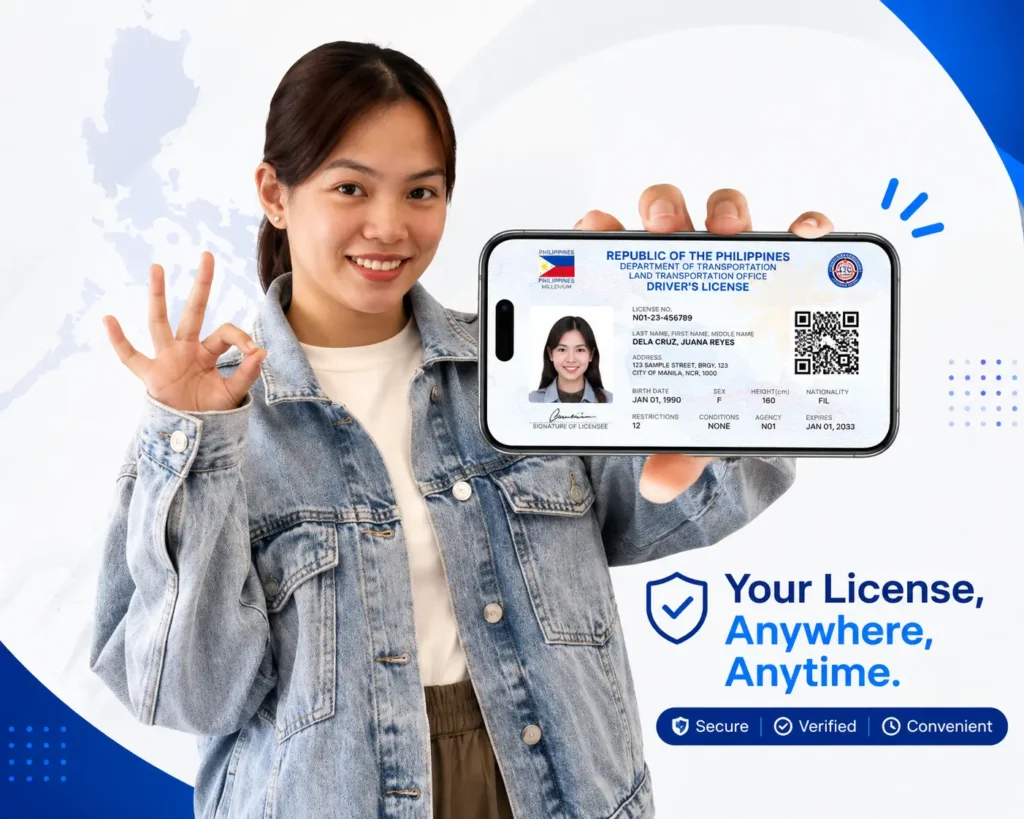
In practical terms, it’s a verified digital record containing:
- Your full legal name
- Date of birth and sex
- Your PhilSys Number (PSN) and PhilSys Card Number (PCN)
- Your registered photo
- A unique, encrypted QR code for authentication
Unlike a screenshot of a card or a scanned photocopy, the Digital National ID is generated live, on demand, directly from PSA’s records which is exactly why it carries the same legal weight as the plastic card or the printed ePhilID under Republic Act No. 11055, the Philippine Identification System Act.
One detail worth knowing from experience helping people through this: the Digital National ID isn’t a separate registration step. If you’re already in the PhilSys database meaning you’ve completed biometric registration, whether or not your physical card has arrived you already qualify to download it today.
What You Need Before You Start
Before opening the app or the website, have these ready:
| Requirement | Why It Matters |
|---|---|
| Completed PhilSys registration | You must already have a PSN; this isn’t a registration tool |
| Registered mobile number or email | Used to receive your One-Time PIN (OTP) |
| Stable internet connection | Required throughout there is no offline download mode |
| A device with a working camera | Needed for the live selfie / facial verification step |
| Good lighting, no glasses or face coverings | Facial verification fails more often in poor lighting |
If any of your registered details (name spelling, birth date, etc.) were entered incorrectly during registration, resolve that first see the Updating Your Information section below, since mismatched data is one of the most common causes of verification failure.
How to Download Your Digital National ID via the eGovPH App
The eGovPH app, developed by the Department of Information and Communications Technology (DICT), is generally the more reliable route because it’s built for repeat access you log in once and your ID stays retrievable.
Step-by-step:
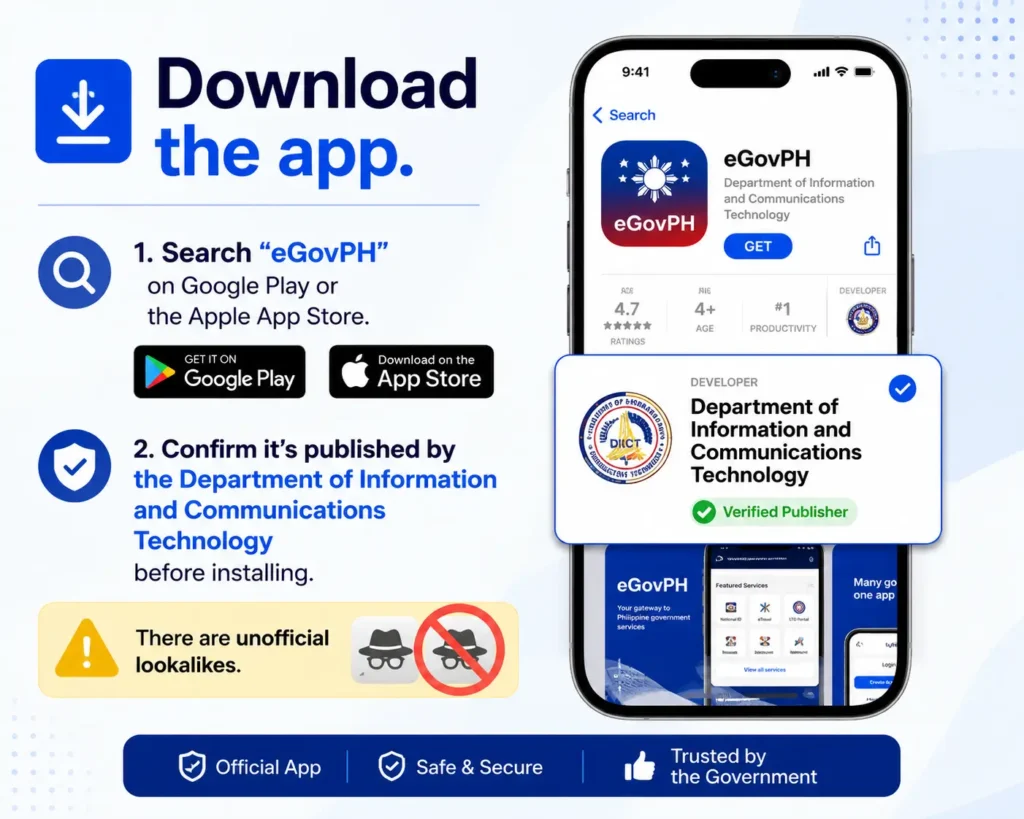
- Step 1: Download the app. Search “eGovPH” on Google Play or the Apple App Store. Confirm it’s published by the Department of Information and Communications Technology before installing there are unofficial lookalikes.
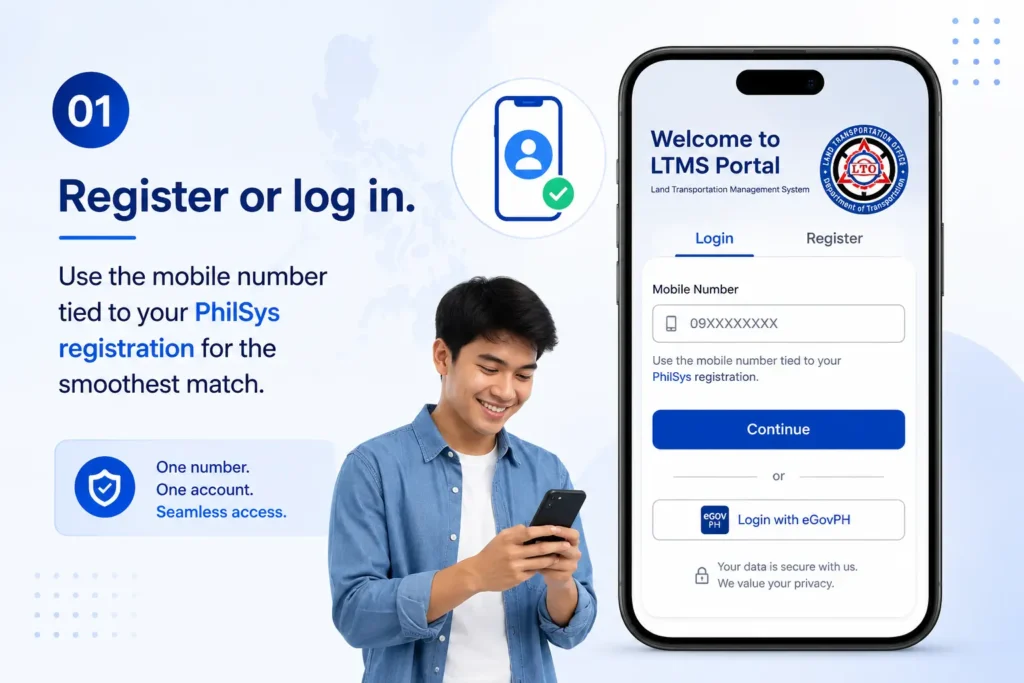
- Step 2: Register or log in. Use the mobile number tied to your PhilSys registration for the smoothest match.
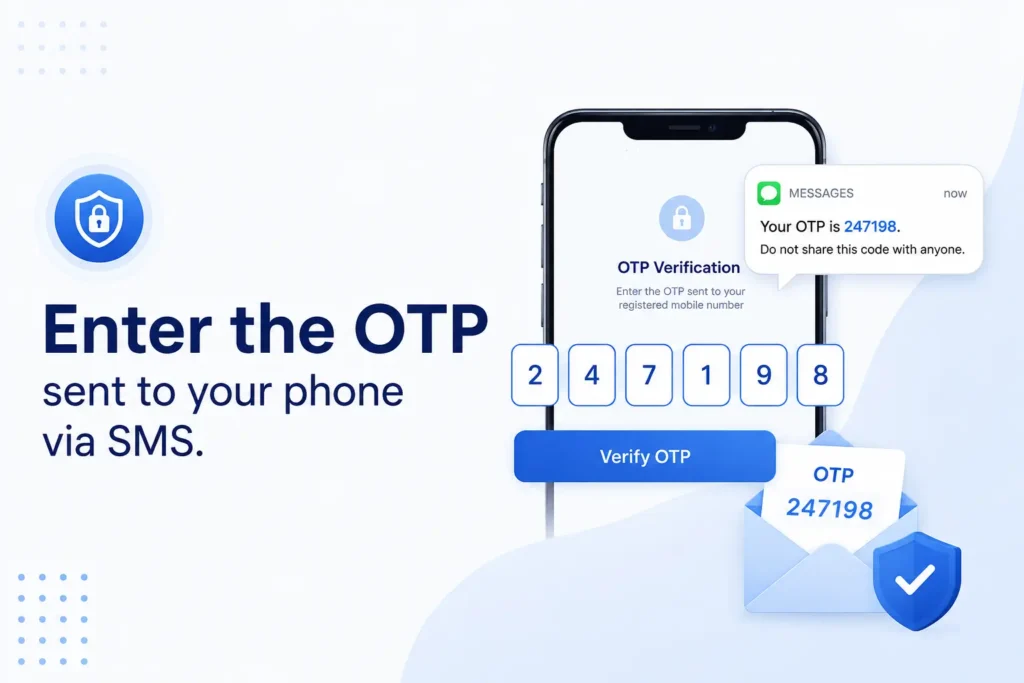
- Step 3: Enter the OTP sent to your phone via SMS.
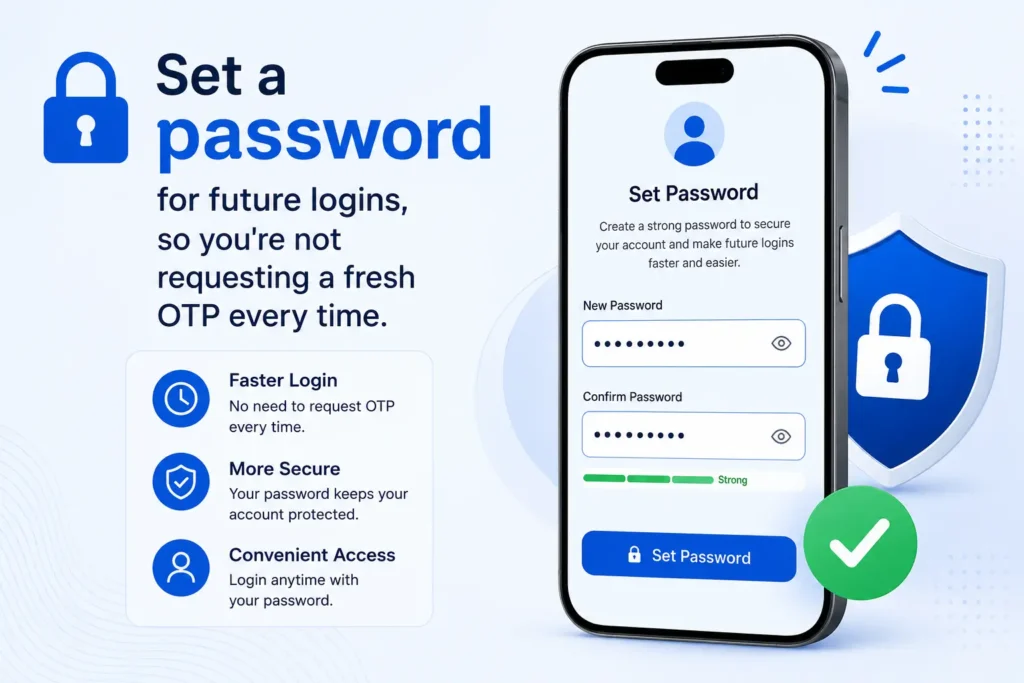
- Step 4: Set a password for future logins, so you’re not requesting a fresh OTP every time.
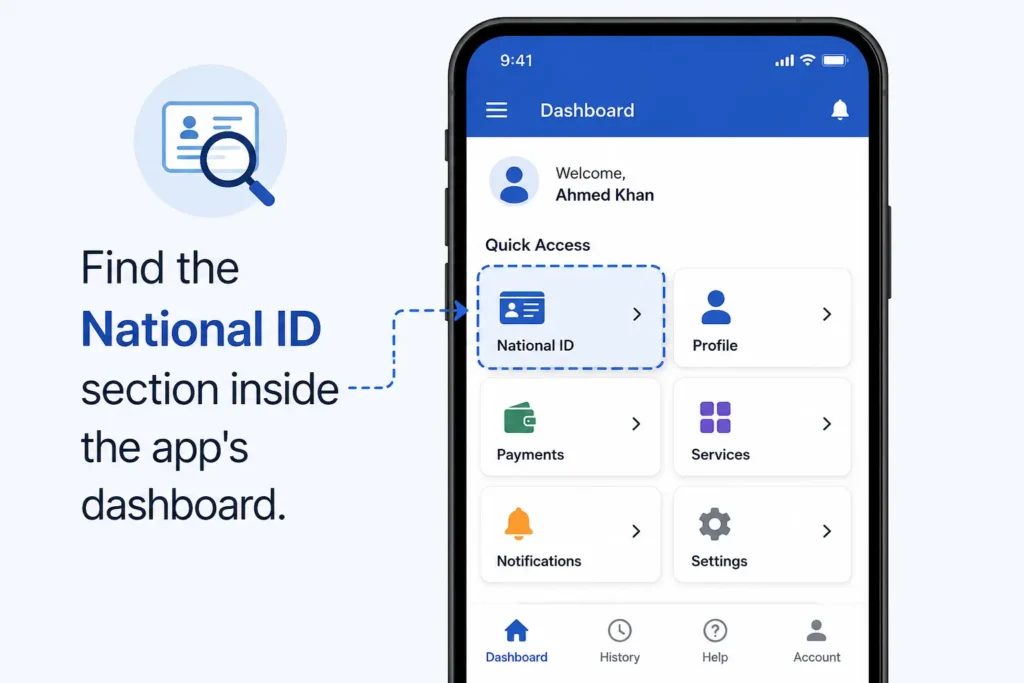
- Step 5: Find the National ID section inside the app’s dashboard.
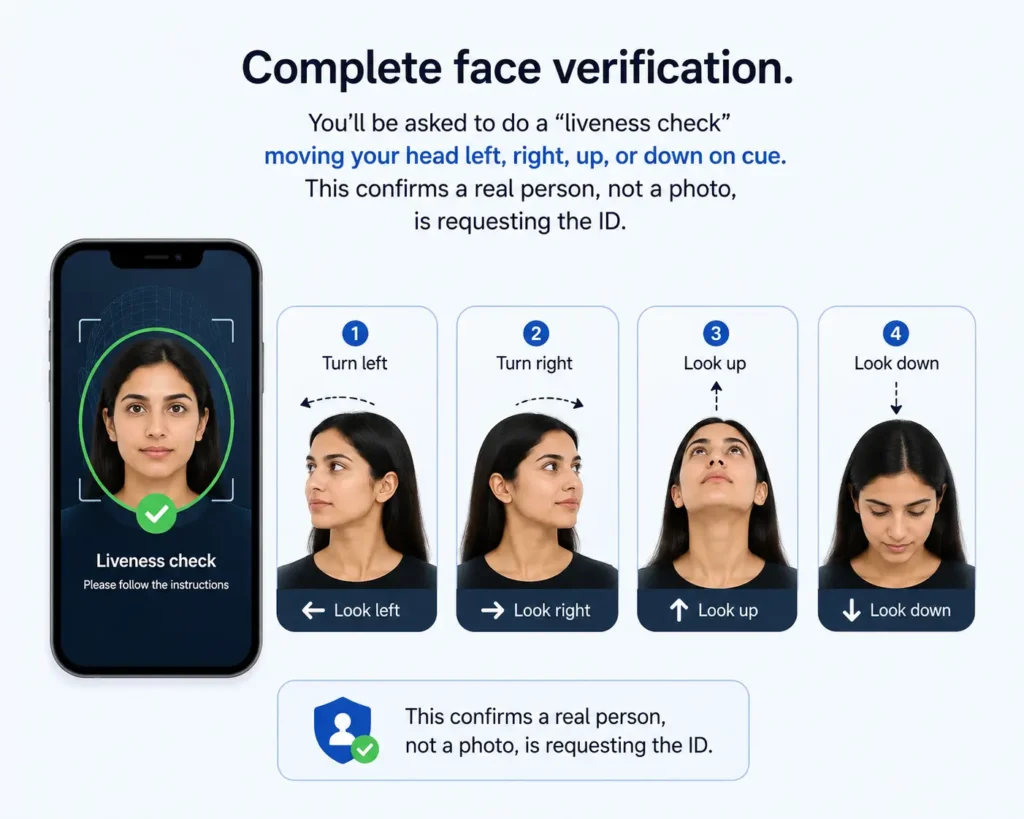
- Step 6: Complete face verification. You’ll be asked to do a “liveness check” moving your head left, right, up, or down on cue. This confirms a real person, not a photo, is requesting the ID.
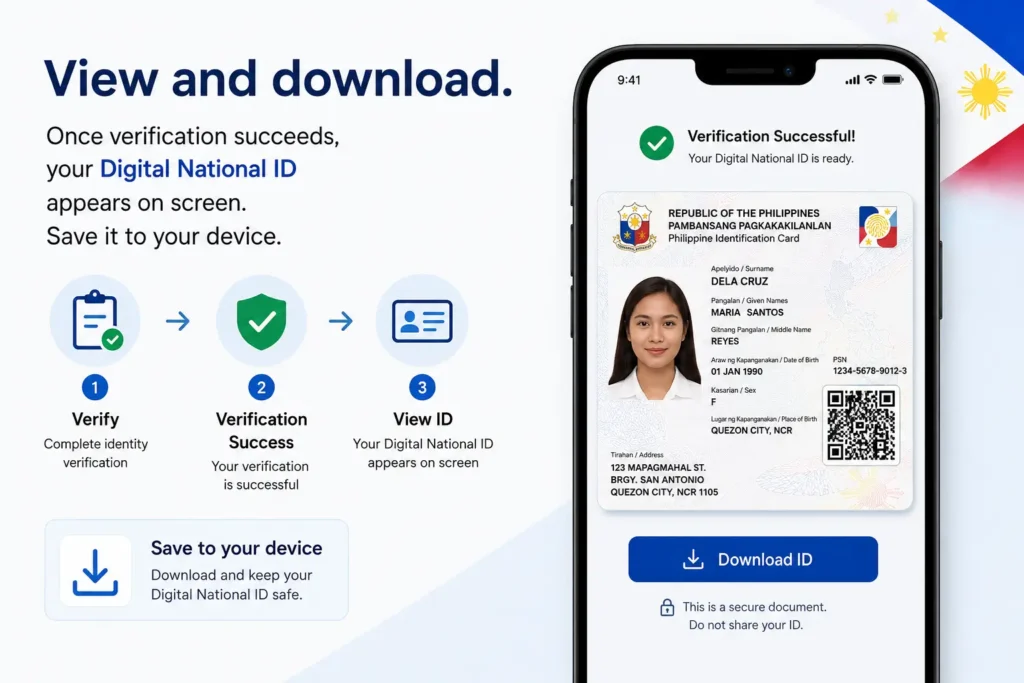
- Step 7: View and download. Once verification succeeds, your Digital National ID appears on screen. Save it to your device.\
This entire process typically takes under 10 minutes once you’re already registered in PhilSys.
How to Download Your Digital National ID via the Website
If you’d rather not install an app, the official PSA portal works the same way through a browser.
- Go to national-id.gov.ph directly (type it in don’t click links from social media posts or unsolicited messages).
- Click Proceed to give consent for PSA to use your demographic data and facial image for authentication.
- Enter your First Name, Middle Name, Last Name, and Date of Birth exactly as registered.
- Complete the identity verification step.
- Once verified, click View National ID to display your Digital National ID.
- Save or download the page as needed.
A practical note: typos here are the single most common reason people get stuck. If your registered record has your middle name spelled slightly differently than how you typed it, the system won’t match and you’ll get a verification error rather than a helpful “check your spelling” message.
eGovPH App vs. National ID Website: Which Should You Use?
Both routes pull from the same PSA database, so the resulting ID is identical in validity. The difference is mainly convenience.
| Feature | eGovPH App | national-id.gov.ph Website |
|---|---|---|
| Best for | Repeated access, mobile users | One-time desktop or browser access |
| Login persistence | Saves login for future use | May require re-verification each visit |
| Offline access after download | Limited, depends on device storage | None browser-based only |
| Installation required | Yes | No |
| Output format | In-app digital ID display | On-screen digital ID display |
If you expect to need your ID often for ride-hailing verification, banking apps, or showing it at counters the app saves time. If this is a one-off need (say, a single bank visit), the website is faster since there’s nothing to install.
Can You Screenshot Your Digital National ID?
Yes, technically you can screenshot it. But based on what we see in real transactions, it’s not the version most institutions prefer.
Here’s why the live, in-app or in-browser version is the better option:
- It reflects your current PSA record in real time, while a screenshot is a static image that could be outdated if your information has since changed.
- The QR code in the live version is what verifiers actually scan against the PhilSys database — a screenshot’s QR code may not scan as cleanly depending on image compression.
- Banks and government offices increasingly prefer seeing the ID pulled up live in the app, since it’s harder to tamper with than an image file.
If you do screenshot it for convenience (for instance, to have a backup if you expect spotty internet later), treat it the same way you’d treat a photo of your physical ID: don’t post it publicly, and don’t send it over unsecured channels.
Where You Can Use Your Digital National ID
Under RA 11055, the Digital National ID is accepted as valid proof of identity and age across government and private transactions, subject to authentication. In practice, that includes:
- Government services SSS, PhilHealth, GSIS, Pag-IBIG transactions
- Banking opening accounts, loan applications
- SIM registration required under the SIM Registration Act
- Passport applications at the DFA
- Employment verification and HR onboarding
- School and university enrollment
- Pension and DSWD benefit verification for senior citizens and beneficiaries
A point worth flagging from real-world use: while the ID is legally valid everywhere, individual frontline staff don’t always have updated training. If a cashier or clerk seems unfamiliar with it, politely point them to PSA’s public advisory confirming the Digital National ID’s validity, or ask them to use the eVerify portal described below.
How to Verify a Digital National ID Is Authentic
Every Digital National ID carries an encrypted, tamper-evident QR code. PSA built a dedicated public tool for checking it.
To verify a Digital National ID:
- Go to everify.gov.ph.
- Use the QR scanner feature and position the QR code so all four corners are visible in the frame.
- The camera auto-captures the code once aligned.
- Wait for the result.
There are only two possible outcomes:
- “National ID has been Verified” displayed along with the cardholder’s demographic information, which should match what’s shown on the ID being presented.
- “QR Code could not be read” meaning the code is damaged, the data has been tampered with, or it isn’t from a National ID at all. PSA recommends scanning up to three times before concluding there’s a real problem.
This eVerify system is also what banks, employers, and government agencies use on their end, so understanding it helps you anticipate what a verifier will see when you present your own ID.
Is It Legal to Print Your Digital National ID?
This is one area where people genuinely get into trouble, so it deserves a direct answer.
Printing your Digital National ID onto PVC or plastic card stock is prohibited. Only the PSA is authorized to manufacture and issue the physical card. A self-printed plastic version is not a valid ID, no matter how accurate the information on it is.
Reproducing or fabricating a National ID card is punishable under Republic Act No. 11055. This isn’t a minor technicality — it exists specifically to prevent counterfeit IDs from circulating.
If you need a paper version for situations where showing a phone screen is impractical, the printed ePhilID (the official paper format issued through registration centers) is the legitimate alternative not a home-printed plastic card.
Common Download and Verification Errors (And How to Fix Them)
Based on patterns we regularly see, most issues fall into a few categories.
“Verification Failure” During Download
- Confirm you have a stable internet connection — weak signal is the most frequent cause.
- Wait a few minutes and retry; PSA’s servers experience heavy traffic at certain times of day.
- Double-check that your typed name and birth date match your registered record exactly.
- If it persists, email [email protected] with:
- Full name (first, middle, last)
- Date of birth (MM/DD/YYYY)
- National ID card number (16-digit number on the card’s front, if you have a physical card)
- Mobile number
- Whether you’ve updated your demographic data before
- Which ID format(s) you currently hold
- Whether you may have registered more than once
PSA handles this information under the Data Privacy Act of 2012, and it’s used solely to resolve your specific issue.
Face Verification Keeps Failing
- Use natural daylight or bright, even indoor lighting — avoid backlighting from windows.
- Remove glasses, hats, or face coverings during the scan.
- Hold the device steady and follow the on-screen head-movement prompts fully.
- Update the eGovPH app to the latest version if it’s been a while since you installed it.
“QR Code Could Not Be Read” During Verification
- Re-scan, ensuring all four corners of the QR code are visible.
- Improve lighting; glare on a phone screen is a common culprit when verifiers scan a digital copy.
- If it fails after three attempts, the holder should report it to the nearest PSA office.
What If You Haven’t Registered Yet?
The Digital National ID isn’t something you can get without first completing PhilSys registration there’s no shortcut around biometric enrollment.
To register:
- Visit a PhilSys Registration Center (these operate out of post offices, malls, LGU offices, and dedicated PSA sites, plus mobile units like National ID on Wheels for remote areas).
- Bring your PSA-issued birth certificate and at least one government-issued ID with your photo and signature.
- Complete biometric capture — fingerprints, iris scan, and photograph.
- Review your details on-screen carefully before confirming.
- Receive your transaction slip with your Transaction Reference Number (TRN) keep this; it’s how you track your physical card and access digital services in the meantime.
Registration is entirely free. Nobody should ask you to pay at any stage of PhilSys registration or for your digital copy.
Updating Your Information on the Digital ID
If your demographic details changed a new address, a name change after marriage, or a corrected birth date you don’t need to register from scratch. Your PhilSys Number is permanent and tied to you for life.
To update:
- Check the official National ID website for registration centers currently offering updating services, since not every center handles updates.
- Bring your existing National ID (physical, ePhilID, or proof of your digital copy) along with supporting documents for the change (e.g., a marriage certificate for a name change).
- Visit in person — updates currently require a registration center visit rather than a purely online process.
Once updated, your Digital National ID will reflect the corrected information the next time you download it.
FAQs About How to Get a Digital Copy of Your National ID
Can I use the Digital National ID for all transactions?
Yes. It carries the same legal validity as the physical card and the printed ePhilID for both government and private transactions, subject to standard authentication.
Can I print my Digital National ID on plastic or PVC cards?
No. Only the PSA may issue the physical card. Printing your own plastic version is prohibited under RA 11055 and can result in penalties.
What if I don’t have internet access?
You’ll need an active connection to download or display your Digital National ID, since it’s authenticated live against PSA’s servers. If you don’t have reliable internet, a trusted family member or barangay assistance desk can help you complete the steps — this is especially relevant for senior citizens and PWDs.
Can someone else download my Digital National ID for me?
Not entirely. The process requires your own live facial verification, so another person can guide you through the steps but cannot complete the biometric check on your behalf.
Does the Digital National ID expire?
No. Like the physical card and the ePhilID, it has no expiration date.
How do I check if a Digital National ID is genuine?
Scan the QR code at everify.gov.ph. A genuine ID returns a “Verified” result with matching demographic details; a tampered or invalid code returns “QR Code could not be read.”
What if I registered for PhilSys more than once by mistake?
Multiple registrations can cause verification conflicts. Report it to PSA immediately via [email protected] or the PhilSys hotline so they can flag and correct your record.
Is there a fee to download the Digital National ID?
No. Registration and the digital copy are both free. Be cautious of any third party charging for “ID download assistance” — the official channels never charge for this step.
What’s the difference between the Digital National ID and the ePhilID?
The Digital National ID is the version you view and download on a screen via the app or website. The ePhilID is a printed paper format issued by PSA at registration centers. Both are official and legally valid; they’re just different formats of the same underlying record.
Conclusion
Waiting for a physical National ID card no longer means waiting to use one. If you’re already registered in PhilSys, your Digital National ID is available today through either the eGovPH app or national-id.gov.ph, and it holds the same legal weight as the plastic card under RA 11055.
A few things worth remembering:
- You need to be registered in PhilSys first — there’s no separate “digital registration.”
- Both download routes require live facial verification and a stable internet connection.
- The ID is free to obtain; never pay a third party to “process” it for you.
- Never have it printed onto plastic — that’s both invalid and illegal.
- Always verify authenticity through everify.gov.ph when in doubt, especially before accepting someone else’s digital ID as proof.
If you’re running into a verification error that the standard fixes above don’t resolve, PSA’s official channels ([email protected] or hotline 1388) remain the most reliable next step.